
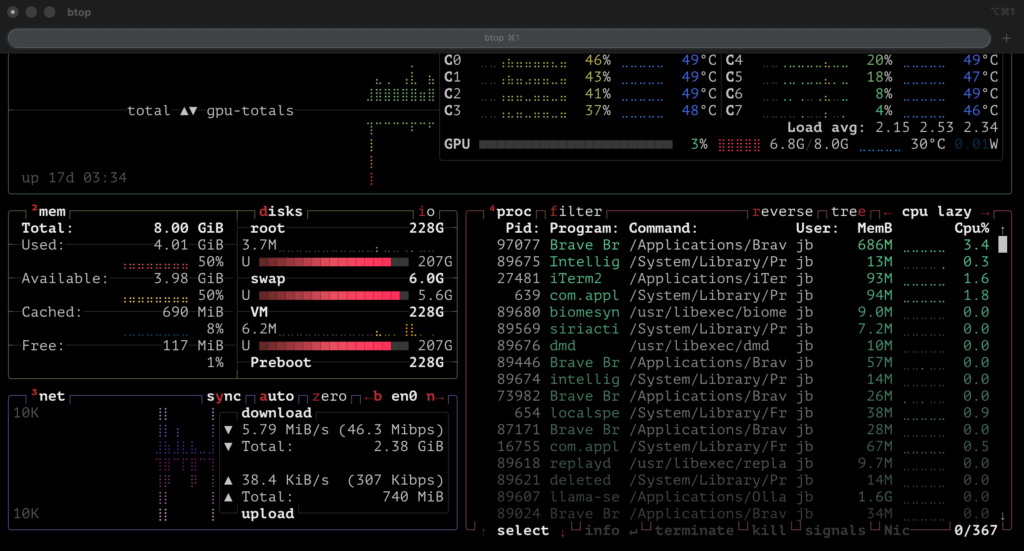
A Linux server is different from a desktop because you primarily use a text-based interface called the command line or shell. To manage a server, you first connect to it remotely using a protocol called SSH (Secure Shell).
Connecting To Your Server
Most servers do not have a monitor; you “log in” from your own computer using the terminal.
Open Your Terminal
On Mac/Linux, open the “Terminal” app.
On Windows, use PowerShell or a tool like PuTTY.
Run the SSH command: Type ssh username@ip-address (e.g., ssh root@192.168.1.100).
Authenticate
Enter your password when prompted. Once logged in, the prompt will change to show you are now controlling the remote server.
Navigation
Since there are no icons to click, you must type commands to move around the filesystem.
pwd (Print Working Directory): Tells you exactly which folder you are currently in.
ls (List): Shows you all files and folders in your current location.
cd [folder] (Change Directory): Moves you into a specific folder. Use cd .. to move back up one level.
Managing Files and Folders
Create a folder: Use mkdir folder_name.Create a blank file: Use touch file_name.txt.
Read a file: Use cat file_name.txt to see its contents in the terminal.
Edit a file: Use a text editor like Nano by typing nano file_name.txt. This allows you to type directly into the file.
Administrative Tasks To perform major changes, you often need “Superuser” (admin) privileges.
Using sudo: Place sudo before any command (e.g., sudo apt update) to run it with administrative power.
Updating your server: Keep your server secure by running sudo apt update && sudo apt upgrade regularly.
Managing Services: Use systemctl to start or stop background programs (daemons), such as a web server.
Example: sudo systemctl start nginx