Servers
System Administrator
- File Management: ls (list files), cp (copy), mv (move/rename), and rm (delete).
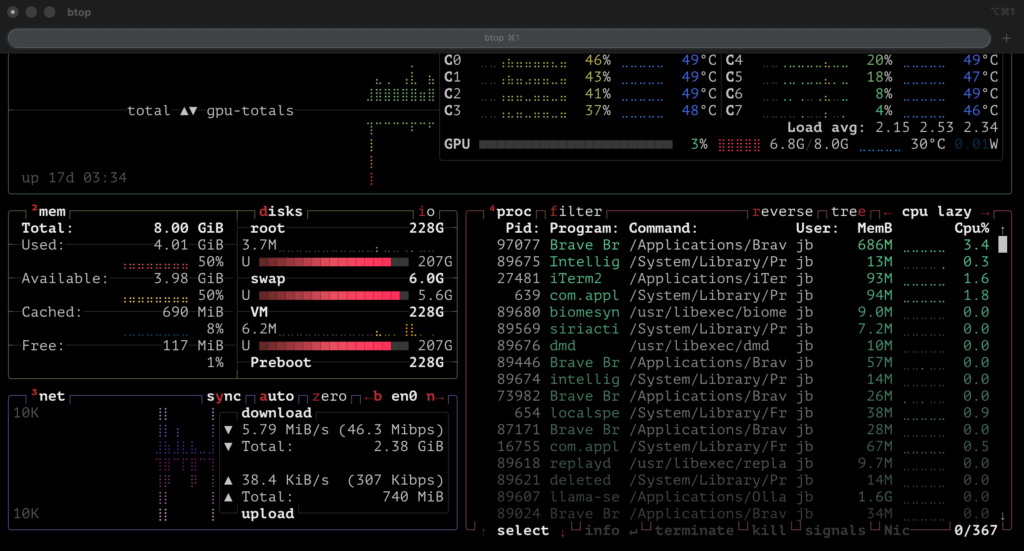
- System Admin: shutdown (system halt/reboot), man (help pages), and top (process monitoring).
- Text Viewing: cat (view full file), less or more (view file one page at a time).
- Networking: Basic configurations for Ethernet adapters and DHCP settings.
Preparation and Installation
Before starting, ensure you have at least 2GB of free storage and installation media like a USB flash drive.
- Choose a Distro: While Ubuntu is popular, other options include Debian (stability), CentOS/Rocky Linux (enterprise focus), or Arch (highly customizable).
- Create Installation Media: Download the ISO file for your chosen distribution and “burn” it to a USB drive using tools like Rufus or BalenaEtcher.
- Boot and Install: Insert the USB into your target machine, boot from it, and follow the screen-by-screen installer. You will configure your language, keyboard layout, and network settings.
Initial Server Setup
Once installed, perform these essential steps to secure your server.
- Update Your System: Ensure all software is current by running:
sudo apt update && sudo apt full-upgrade. - Create a Non-Root User: Operating as the “root” user is risky. Create a new user and grant them administrative privileges using sudo.
- Set Up SSH: For remote management, ensure the OpenSSH server is running. It is best practice to use SSH keys instead of passwords for authentication.
- Configure a Firewall: Use a tool like UFW (Uncomplicated Firewall) to block all incoming traffic except for necessary ports (e.g., port 22 for SSH, 80/443 for web traffic).
Essential Commands to Learn
- ls: List files and directories.
- cd: Change your current directory.
- pwd: Show the path of your current directory.
- mkdir: Create a new folder.
- top or htop: Monitor system resources like CPU and RAM usage.
Deploying Services
Most users set up a Linux server to host a specific service. A common starting point is a web server.
- Apache or Nginx: These are the two most popular web server applications. You can install Apache with sudo apt install apache2.
- LAMP/LEMP Stack: This refers to a suite including Linux, a web server (Apache/Nginx), a database (MySQL/MariaDB), and a programming language (PHP/Python/Perl).
Operating a Linux server
A Linux server is different from a desktop because you primarily use a text-based interface called the command line or shell. To manage a server, you first connect to it remotely using a protocol called SSH (Secure Shell).
Connecting to Your Server
- Most servers do not have a monitor; you “log in” from your own computer using the terminal. Open your terminal: On Mac/Linux, open the “Terminal” app. On Windows, use PowerShell or a tool like PuTTY.
- Run the SSH command: Type ssh username@ip-address (e.g., ssh root@192.168.1.100).
- Authenticate: Enter your password when prompted. Once logged in, the prompt will change to show you are now controlling the remote server.
Navigation
Since there are no icons to click, you must type commands to move around the filesystem.
- pwd (Print Working Directory): Tells you exactly which folder you are currently in.
- ls (List): Shows you all files and folders in your current location.
- cd [folder] (Change Directory): Moves you into a specific folder. Use cd .. to move back up one level.
Managing Files and Folders
- Create a folder: Use mkdir folder_name.
- Create a blank file: Use touch file_name.txt.
- Read a file: Use cat file_name.txt to see its contents in the terminal.
- Edit a file: Use a text editor like Nano by typing nano file_name.txt. This allows you to type directly into the file.
Administrative Tasks
To perform major changes, you often need “Superuser” (admin) privileges.
- Using sudo: Place sudo before any command (e.g., sudo apt update) to run it with administrative power.
- Updating your server: Keep your server secure by running sudo apt update && sudo apt upgrade regularly.
- Managing Services: Use systemctl to start or stop background programs (daemons), such as a web server.
- Example: sudo systemctl start nginx