
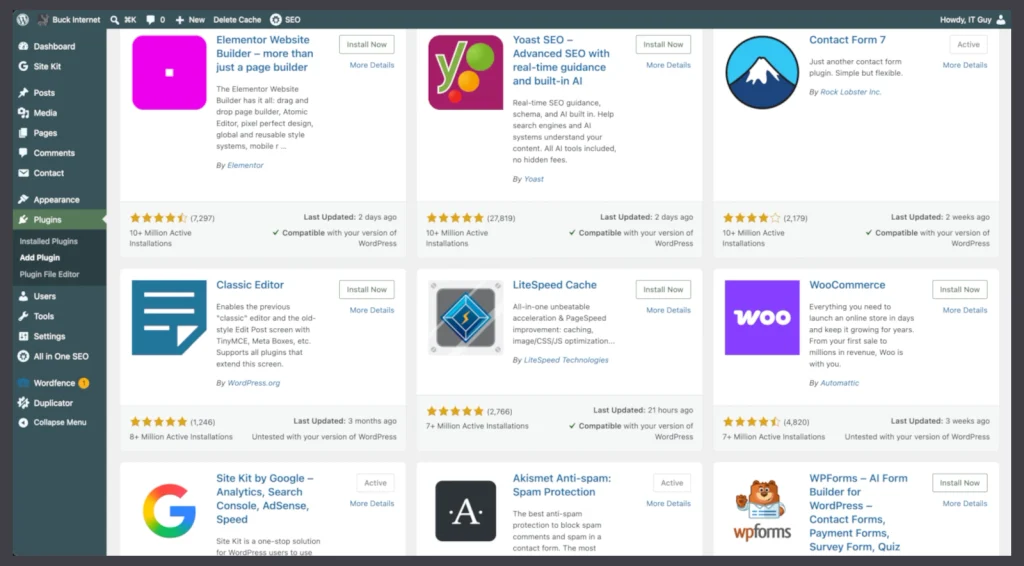
Plugins are essential tools for extending your website’s functionality without writing code.
WordPress Plugin Categories
A well-optimized site typically utilizes plugins from these essential categories:
- Security: Protects against brute-force attacks and malware.
- SEO: Helps your content rank on search engines by optimizing meta tags and sitemaps.
- Caching & Performance: Speeds up your site by storing static versions of your pages.
- Backups: Ensures you can recover your site if it crashes.
- Forms: Used for contact pages or surveys.
Setup Guide
- Install: Navigate to Plugins > Add New in your dashboard. Search for your desired tool and click Install Now.
- Activate: After installation, click Activate to enable the plugin’s features.
- Configure: Most plugins add a new menu item to your dashboard or under the Settings tab. For example, PDF Embedder settings are found under Settings > PDF Embedder.
- Usage: Many plugins use Shortcodes (e.g., [pdf_generator]) or Gutenberg Blocks to place features on specific pages.
Troubleshooting
Troubleshooting an installed WordPress plugin involves a methodical process of elimination to identify conflicts without disrupting your site’s visitors.
- Perform a Full Site Backup
- Before making any changes, use a tool like UpdraftPlus or your hosting provider’s built-in backup feature to create a complete restoration point.
- Clear All Caches
- Incorrect displays are often caused by outdated versions of pages stored in a cache.
- Browser: Perform a hard refresh (Ctrl + F5 or Cmd + Shift + R).
- Site-level: Clear caches in plugins like WP Rocket.
- Server-level: Use your hosting control panel to flush object or CDN caches.
- Use “Troubleshooting Mode” (Recommended)
- This is the safest way to find conflicts because it deactivates plugins only for you, while your visitors see the site as normal.
- Install: Search for the Health Check & Troubleshooting plugin in your dashboard.
- Enable: Go to Tools > Site Health > Troubleshooting and click Enable Troubleshooting Mode.
- Isolate: Reactivate the “problematic” plugin first to see if it works alone
- Reactivate other plugins one by one until the error reappears. The last plugin you enabled is likely the source of the conflict.
Conflict Testing
- If you cannot use Troubleshooting Mode, use this standard bulk method:
- Deactivate All: Go to Plugins > Installed Plugins, select all, and choose Deactivate from the bulk actions menu.
- Check Functionality: If the issue is gone, a plugin was the cause.
- Reactivate Individually: Turn plugins back on one at a time, checking your site after each to find the culprit.
Theme Conflicts
- If deactivating all plugins doesn’t fix the issue, the problem may be your theme.
- Temporarily switch to a default theme like Twenty Twenty-Four.
Enable Debugging
- If you see a “White Screen of Death” or a fatal error, enable WP_DEBUG in your
wp-config.phpfile to see the exact error message. This log will often name the specific file and plugin causing the crash.